Rising Tide Word Puzzles makes printed word puzzles for every age, from a theme's words and clues (or, for Breaker, from sayings about including everyone). Every puzzle is saved before it prints, so it can be printed again. Seven kinds of puzzle:
Kind
What it is
CrossCurrents
A crossword with clues, Across and Down
SafeHarbor
A fill-in: fit the listed words into the grid
EquiWords
Unscramble each word
TideWords
Unscramble; the circled letters spell a bonus word
SeaWords
A word search
Breaker
Break the code to read a saying
DriftWords
Put the mixed-up pieces back into words
Everything in the app needs admin access (Using your admin access). Every entry in the contents, and every link in the text, jumps to that topic. The pictures show a sample organization with made-up themes.
Getting started
Signing in, admin access and your account.
Opening Word Puzzles and signing in
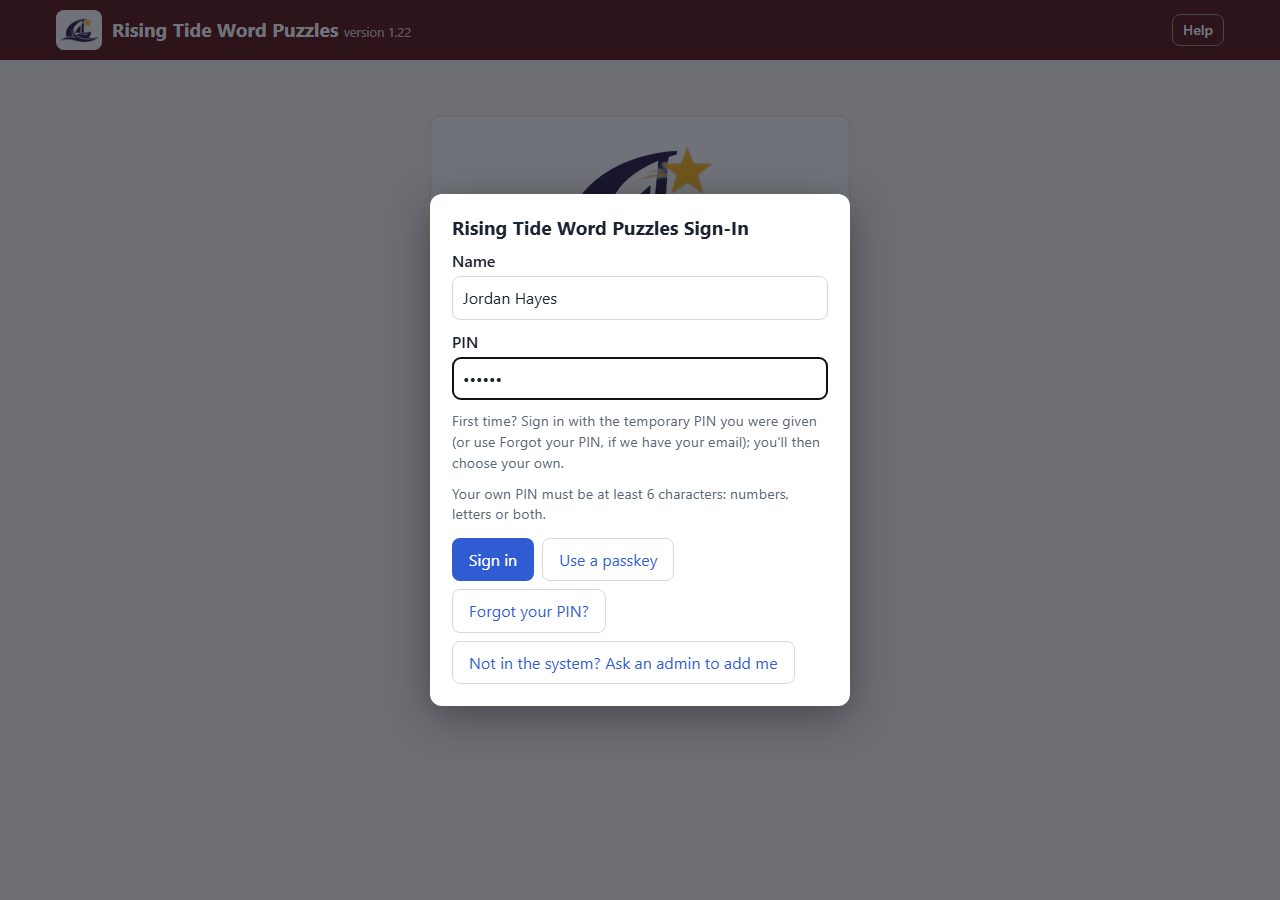
Open Word Puzzles in your browser. The sign-in box opens by itself and asks for your name and PIN every time; nothing is shown until you sign in. Type your full name and your PIN, then tap Sign in. A PIN is at least 6 characters: numbers, letters or both. If you have forgotten your PIN, tap Forgot your PIN? and a code is emailed to you.
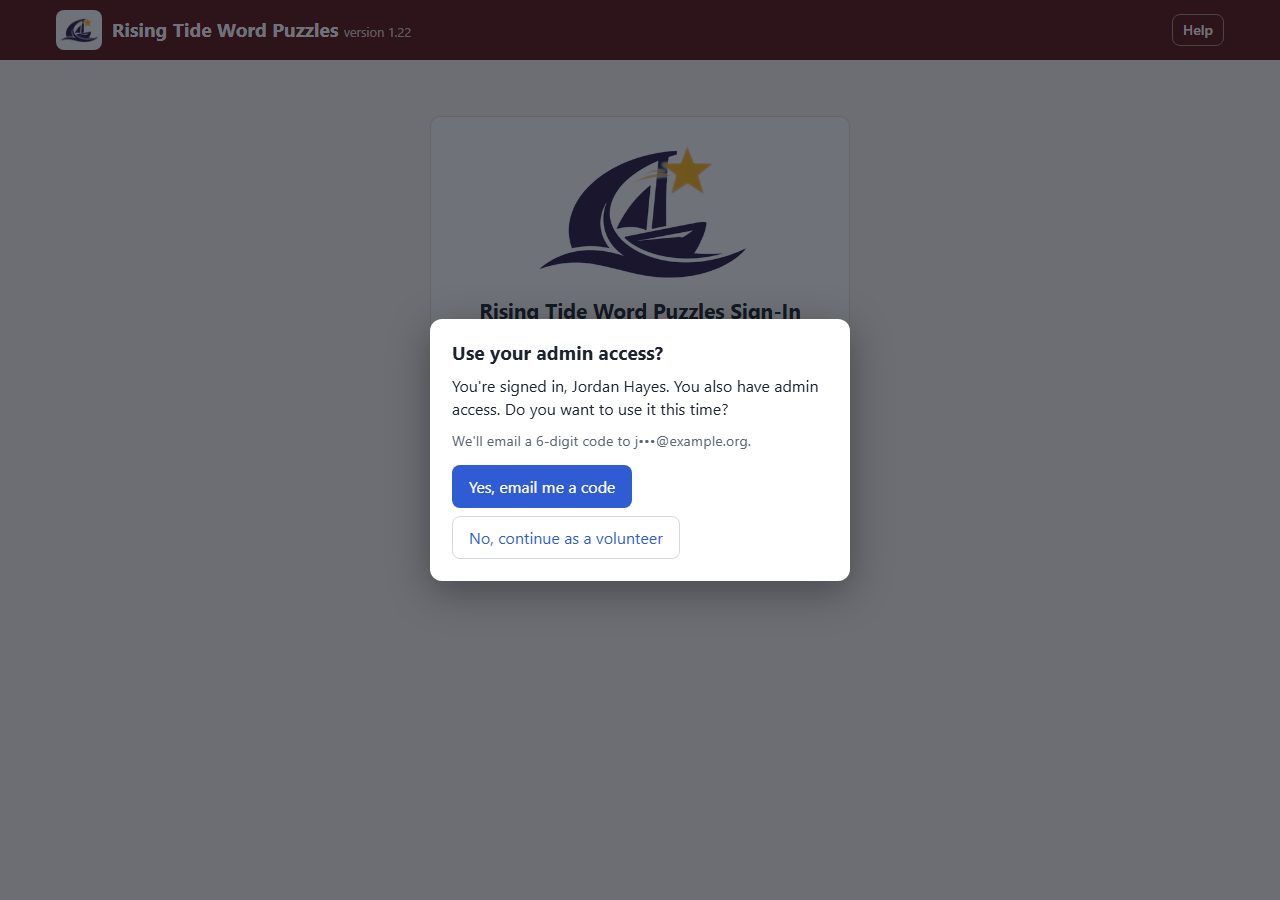
Making, printing and editing puzzles all need admin access. After your PIN, a box asks Use your admin access? Tap Yes, email me a code. (No, continue signs you in at the plain level, which can only see the account page; see If you only see the Account page.)
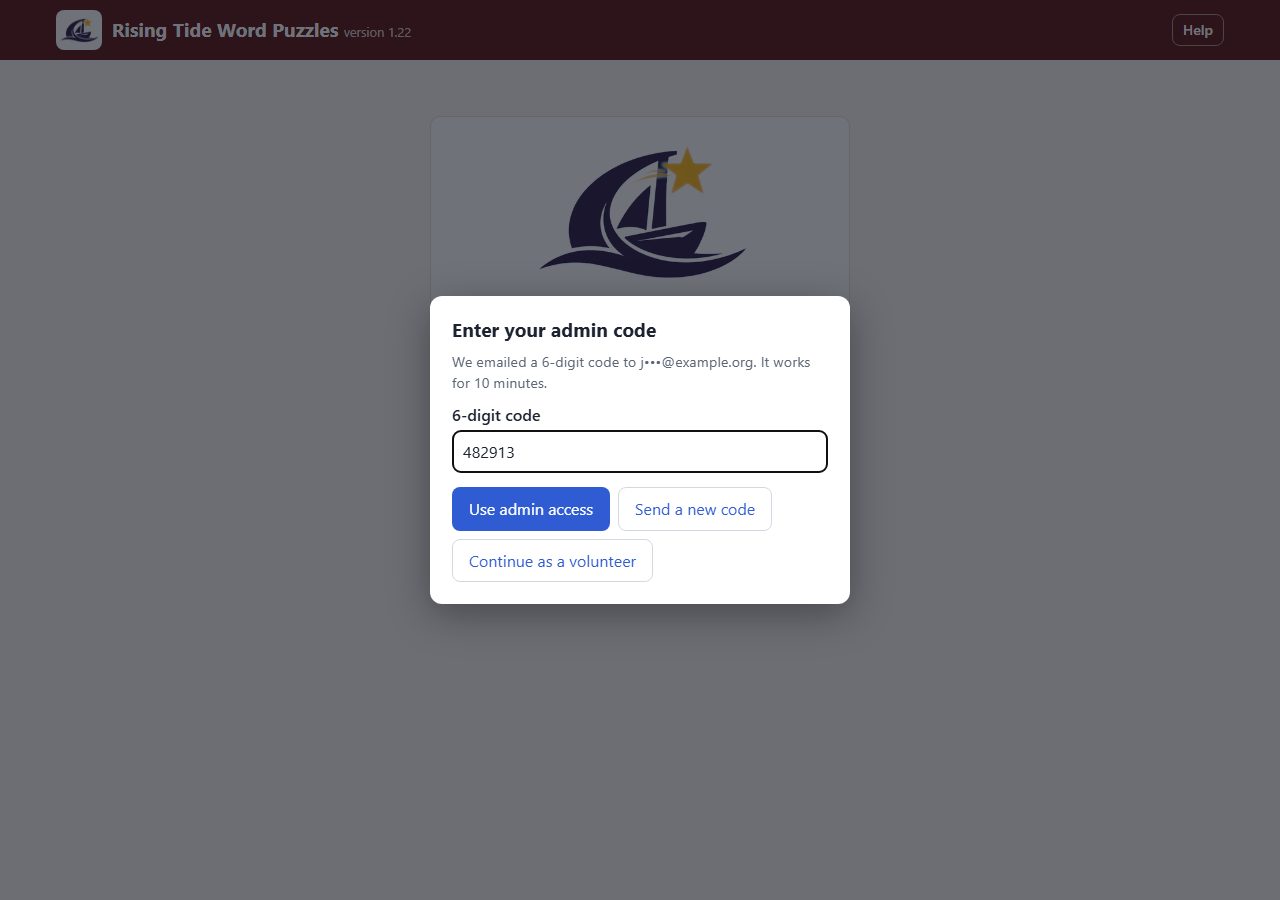
Type the 6-digit code from your email and tap Use admin access. The code works once and expires in 10 minutes; Send a new code sends another. You land on The Make Puzzles screen.
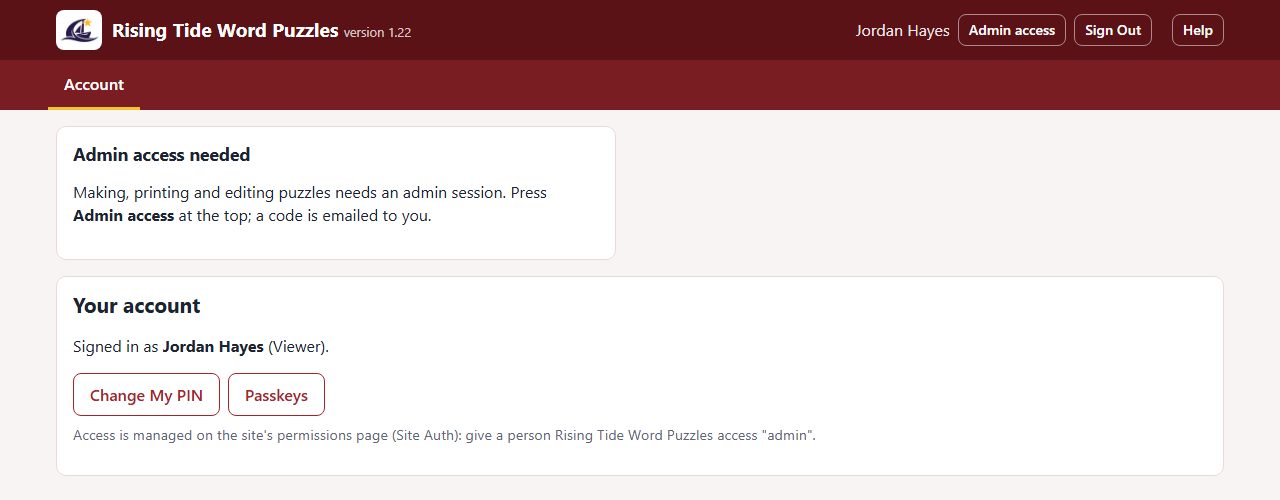
A plain sign-in shows only Account and a note that admin access is needed. Tap Admin access in the header to get the emailed code (The emailed admin code). If there is no Admin access button, you don't have admin access to Word Puzzles; ask a site admin to give it to you on your site's permissions page.
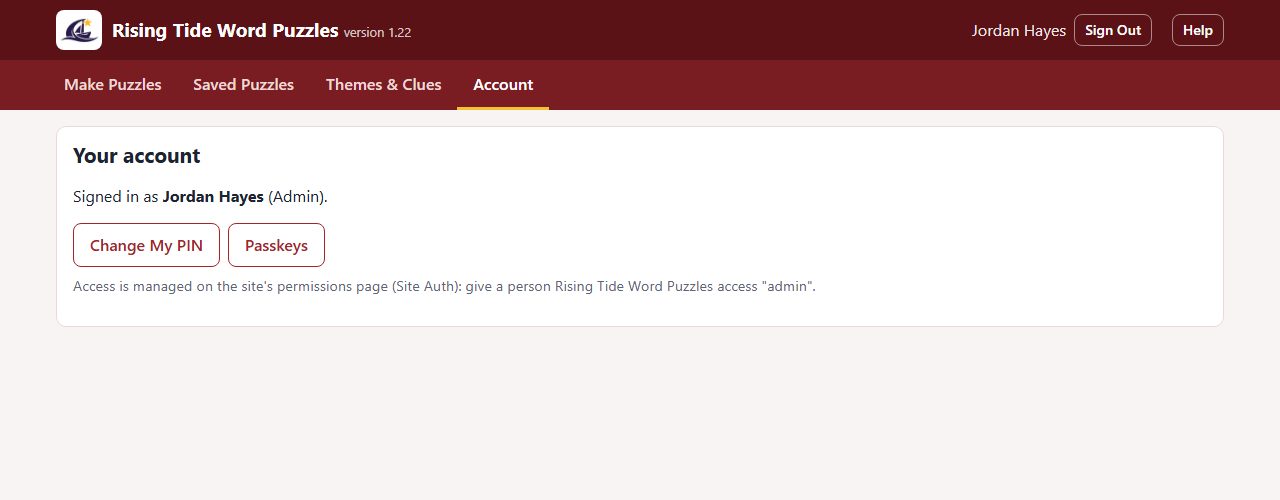
Account shows who you are signed in as. Change My PIN asks for your current PIN and the new one twice. Passkeys lets this phone or computer sign you in with your fingerprint, face or screen lock instead of typing your PIN; your PIN still works.
If your organization's license isn't active, a notice says Word Puzzles is paused and nothing can be changed or saved. Tell a site admin; once the license is renewed the notice clears.
Choosing the theme, age group and kind of puzzle, and printing.
The Make Puzzles screen
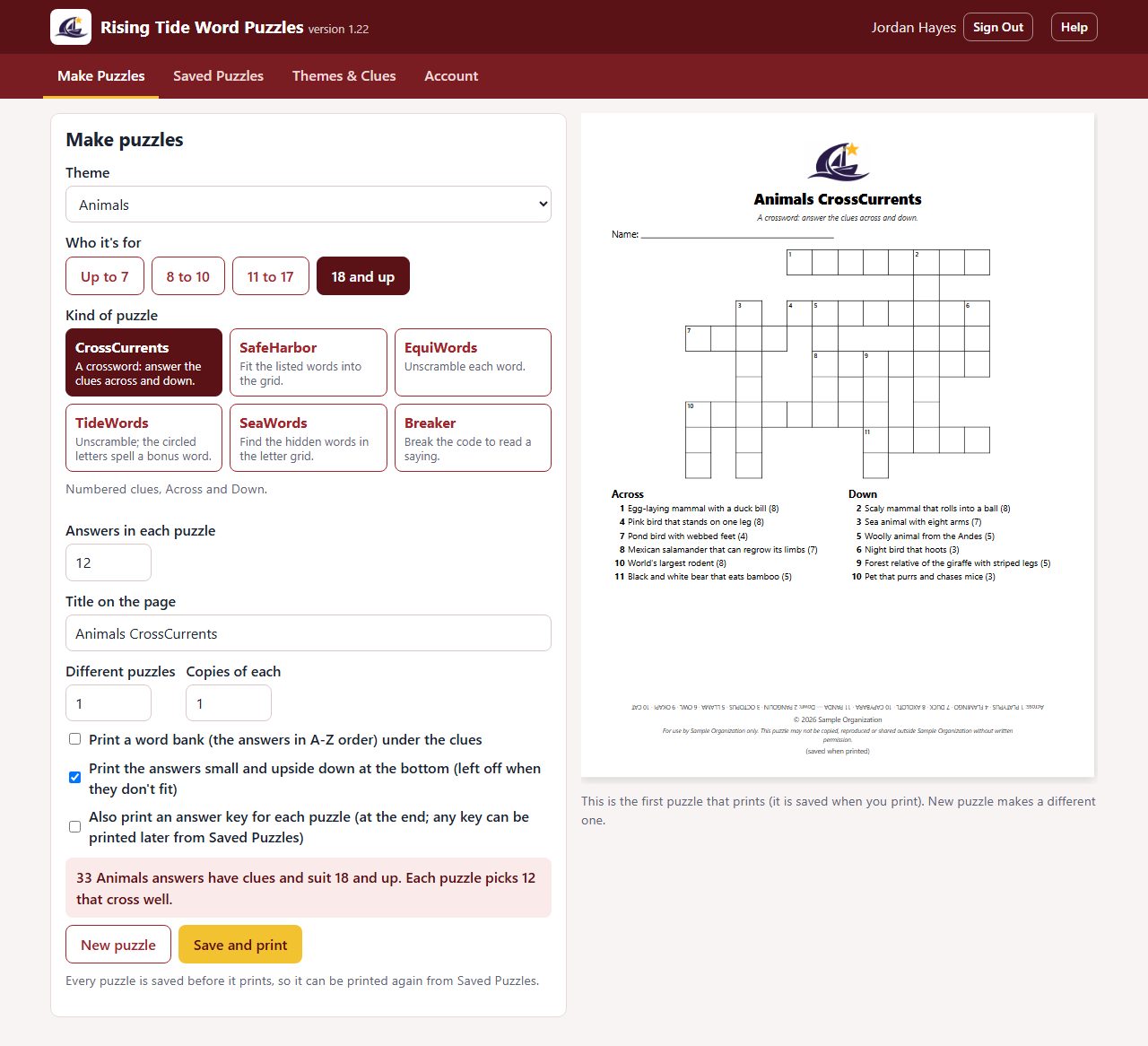
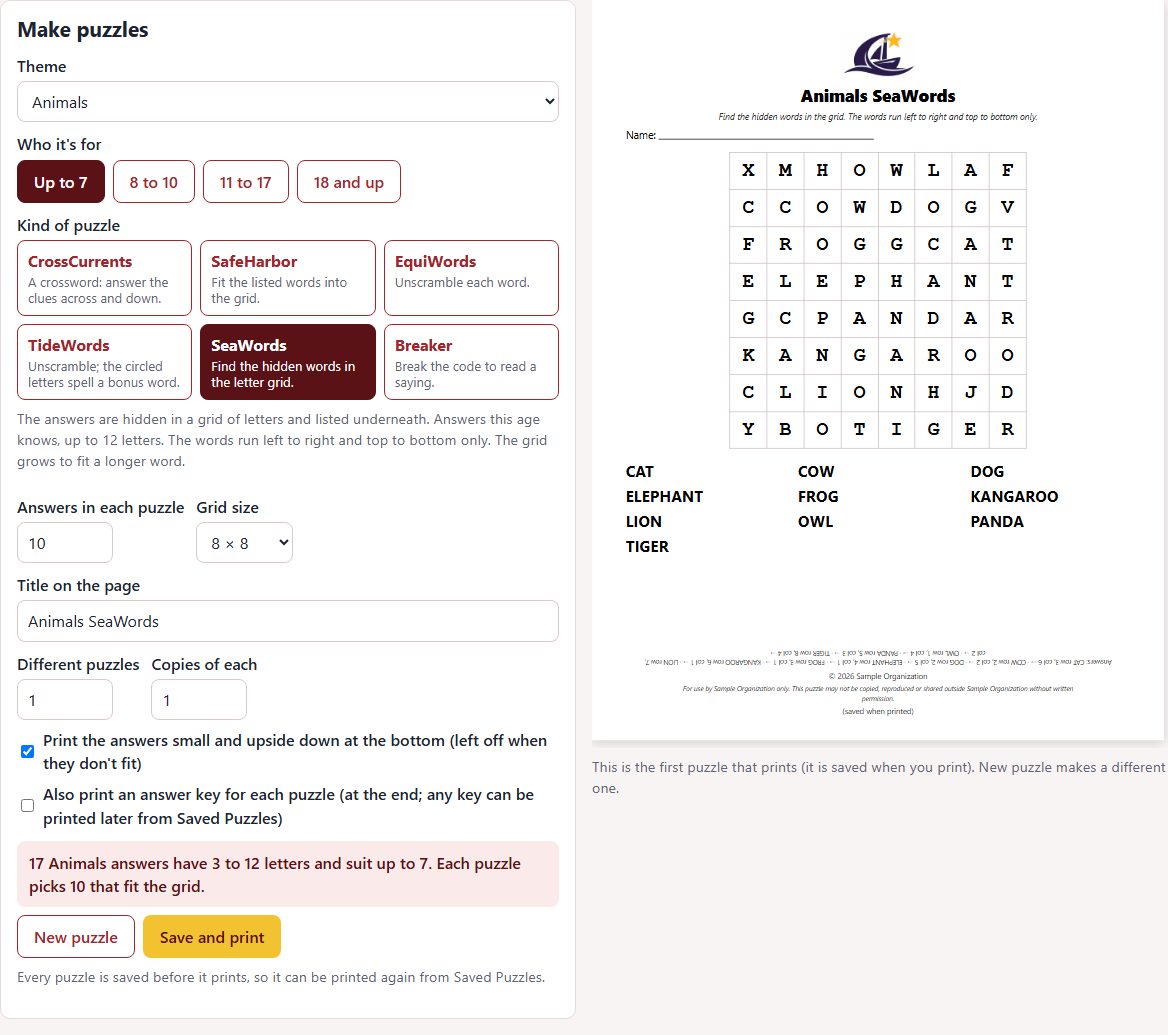
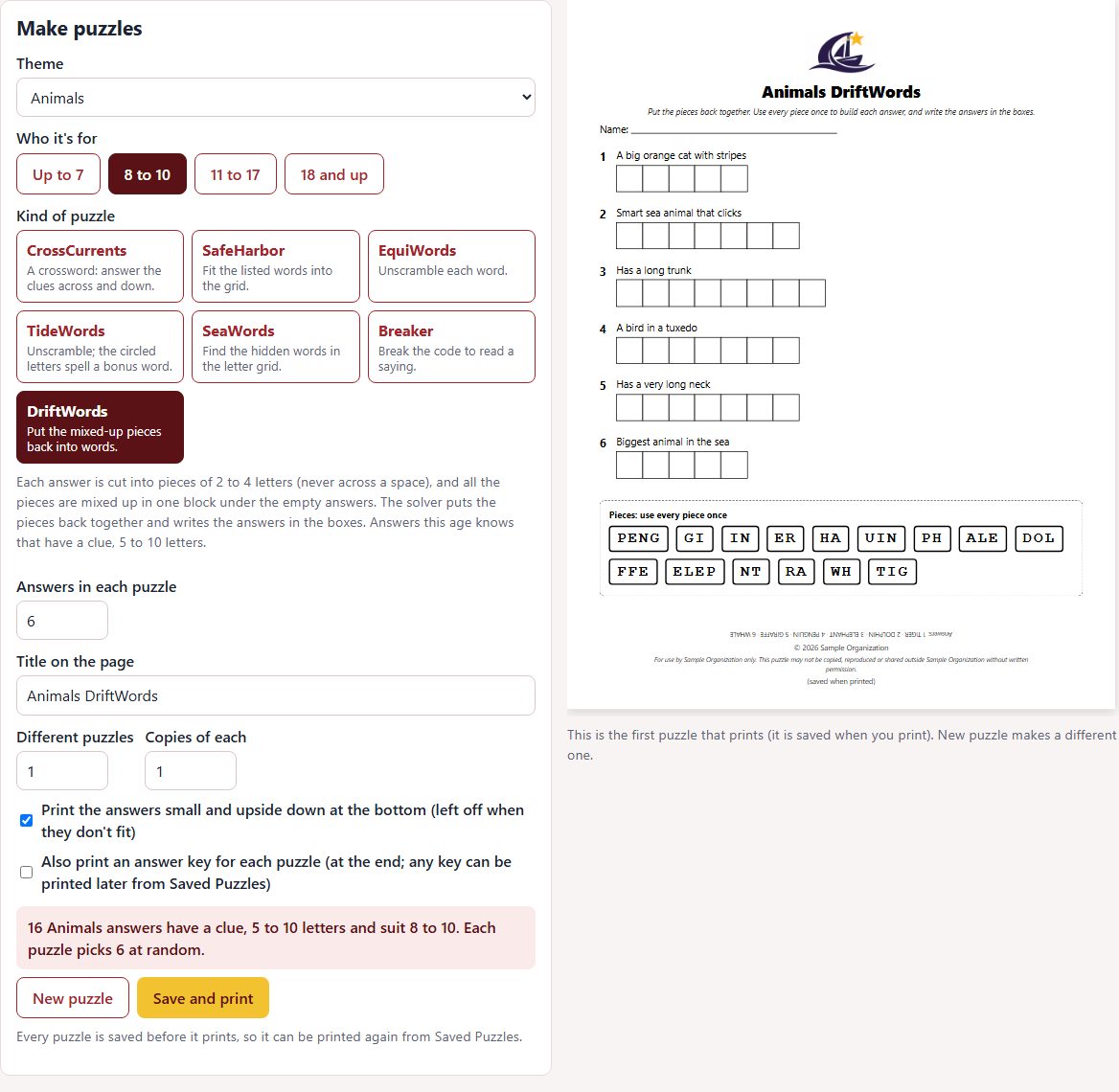
Make Puzzles has the settings on the left and a preview of the first page on the right. Choose a Theme (Breaker uses sayings instead; see Breaker: break the code), Who it's for (Who it's for: the age groups) and the Kind of puzzle. The line under the kinds explains the one you picked, and the box near the bottom says how many answers suit your choices. Every change redraws the preview.
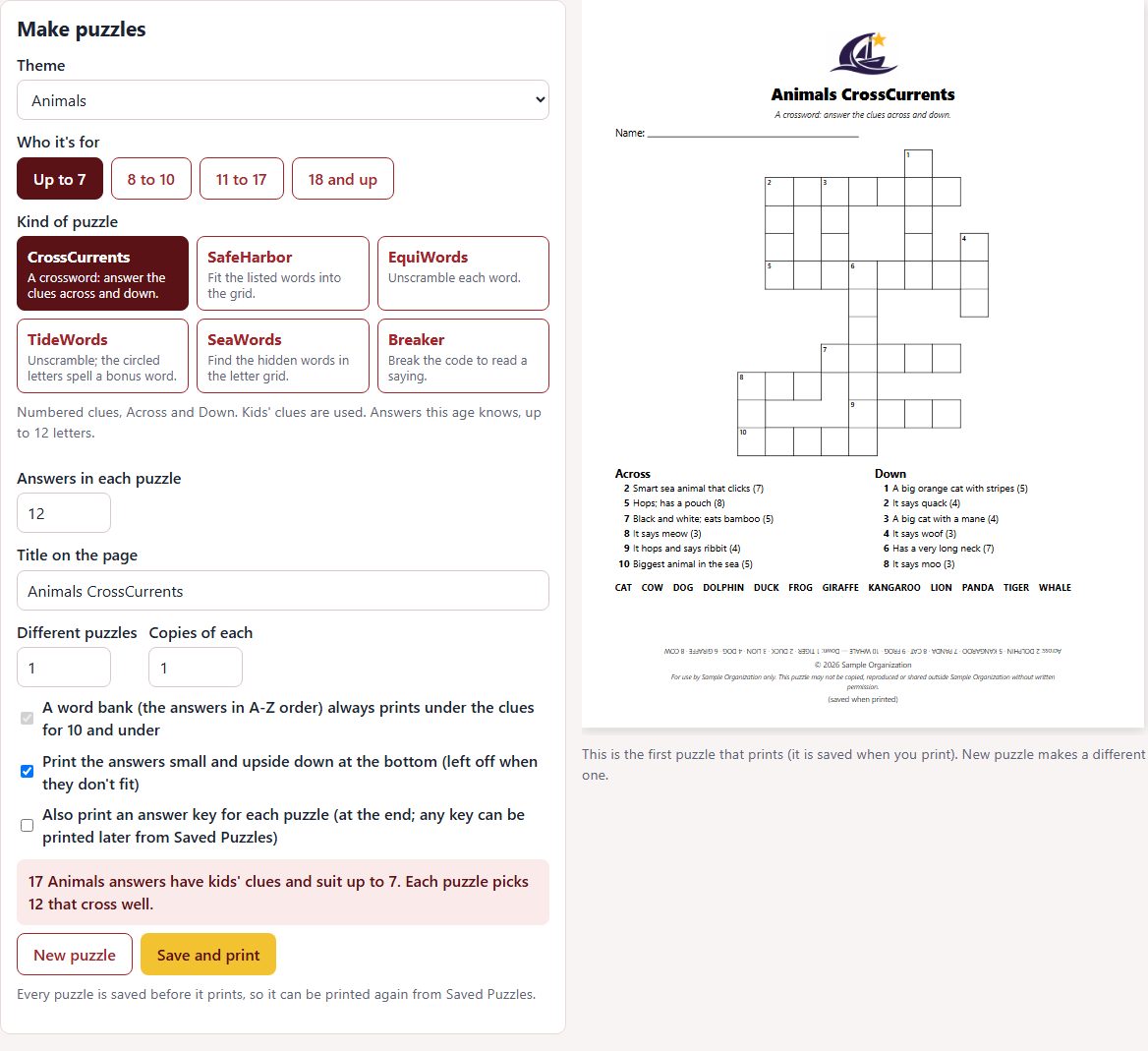
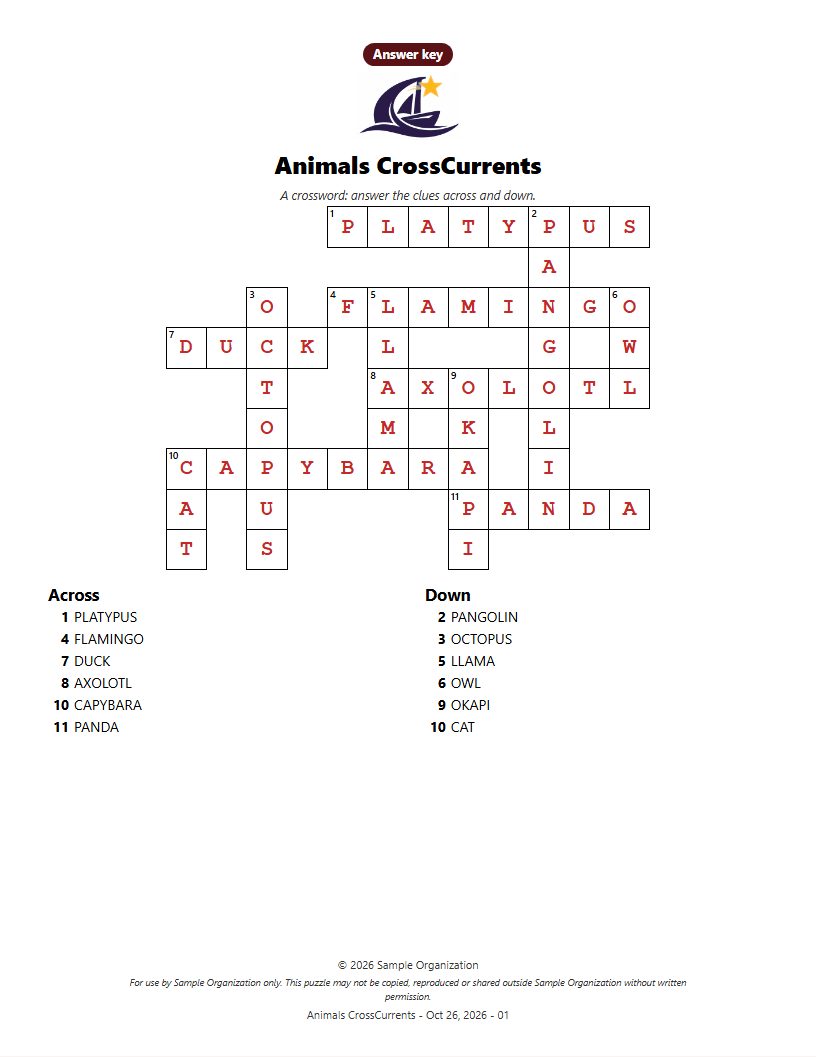
There are four age groups: Up to 7, 8 to 10, 11 to 17 and 18 and up. Each answer belongs to the youngest group that would know it, and older groups use it too, so a puzzle for 11 to 17 draws from three groups. Puzzles for 17 and under use the kids' clues and take answers of up to 12 letters. CrossCurrents for 10 and under always prints a word bank, as in this picture.
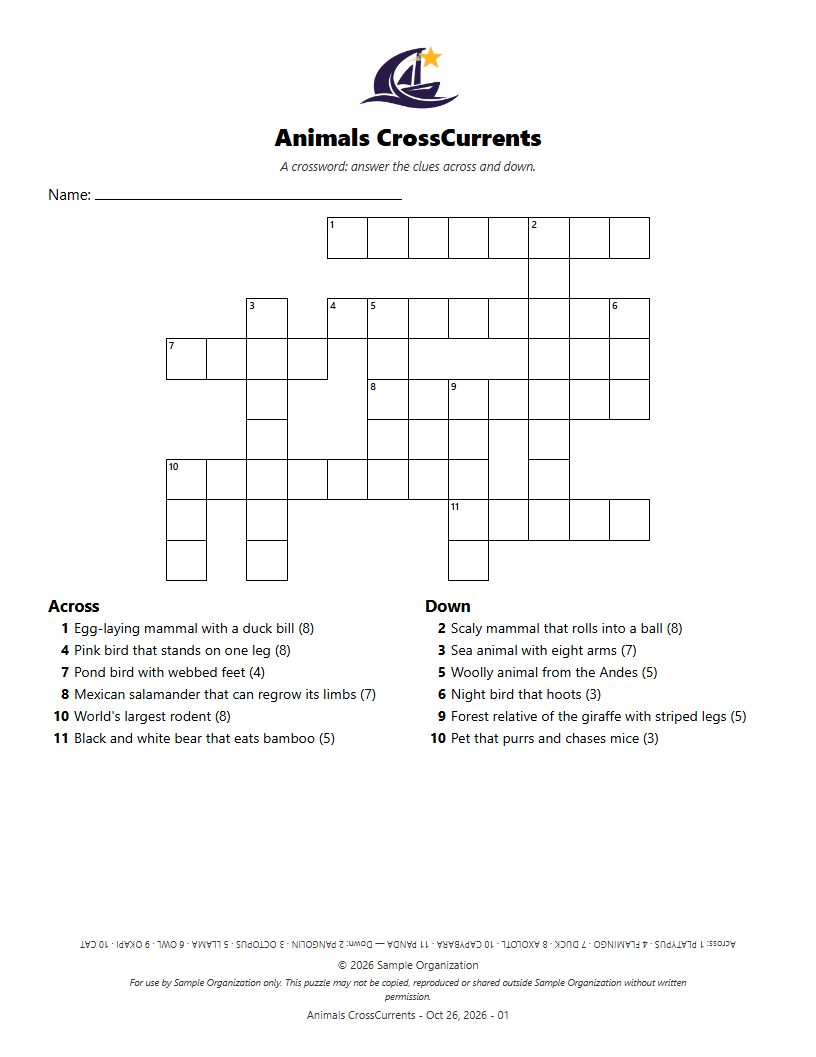
A crossword: numbered clues, Across and Down. Choose Answers in each puzzle (6 to 16); the app fits as many as cross well on one page. Only answers with a clue for the age group can go in. A word bank (the answers in A to Z order) can print under the clues; for 10 and under it always does.
Tick Also print an answer key for each puzzle and the keys print after the puzzles, one per puzzle, marked Answer key. Any key can also be printed later from The Saved Puzzles list. Print the answers small and upside down at the bottom puts the answers in the page's footer instead; they are left off a page where they don't fit.
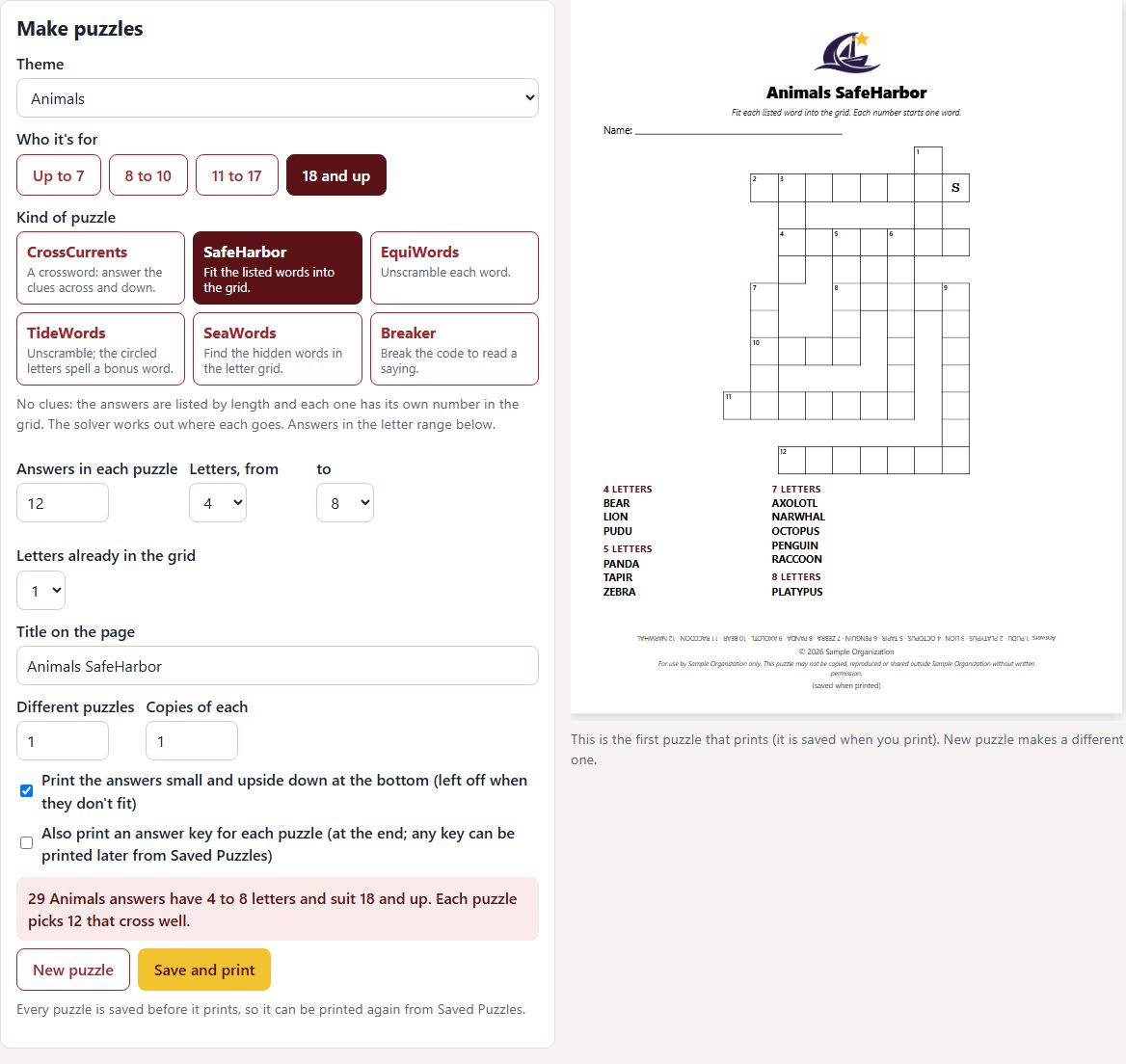
A fill-in with no clues: the answers are listed by length and the solver works out where each one fits. Each answer has its own number in the grid. Letters already in the grid (0 to 6) prints a few letters to start. Up to 20 answers.
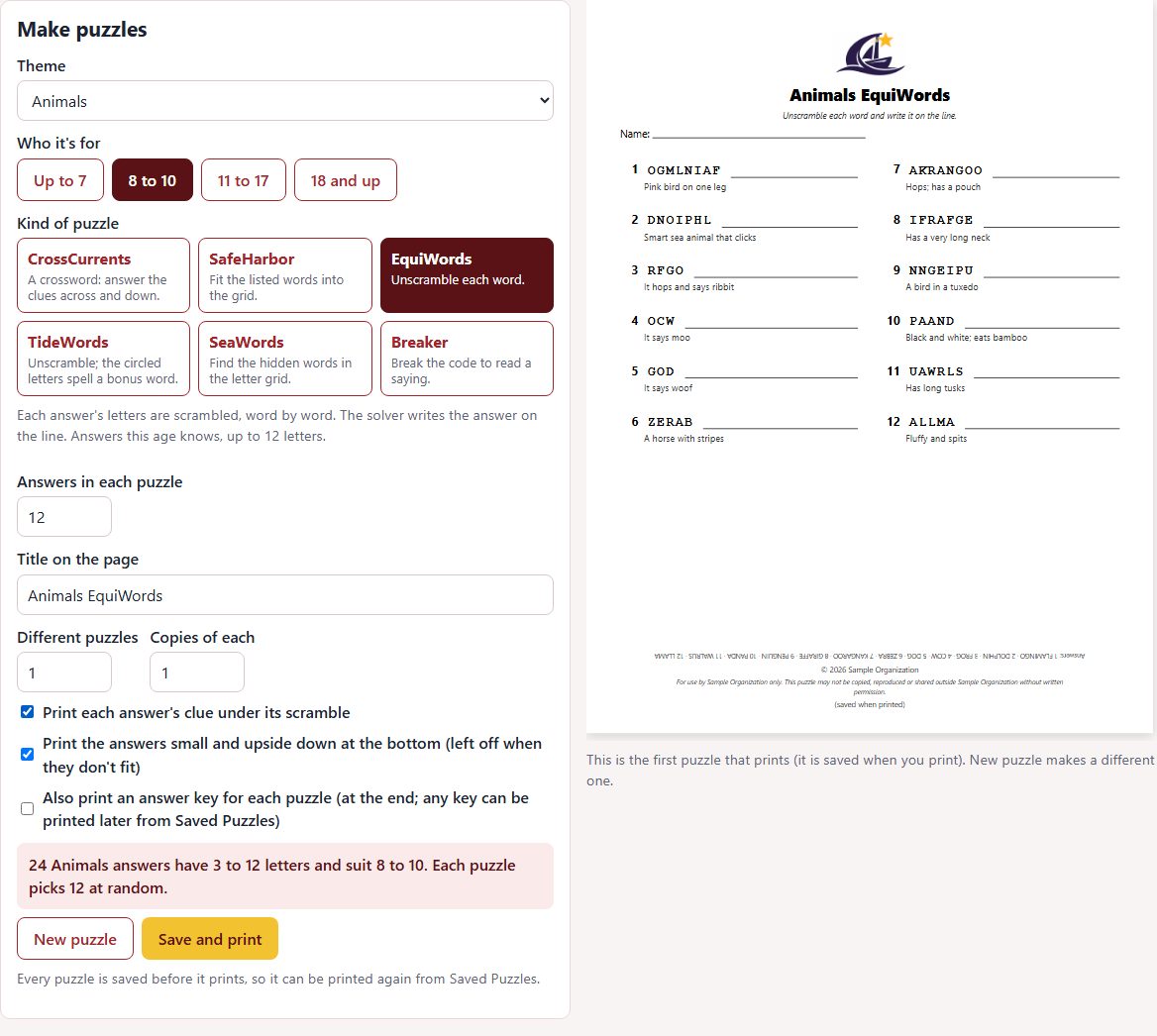
Each answer's letters are scrambled, word by word, and the solver writes the answer on the line. Tick Print each answer's clue under its scramble to add the clues, as here. More than 10 answers print in two columns. Up to 20 answers.
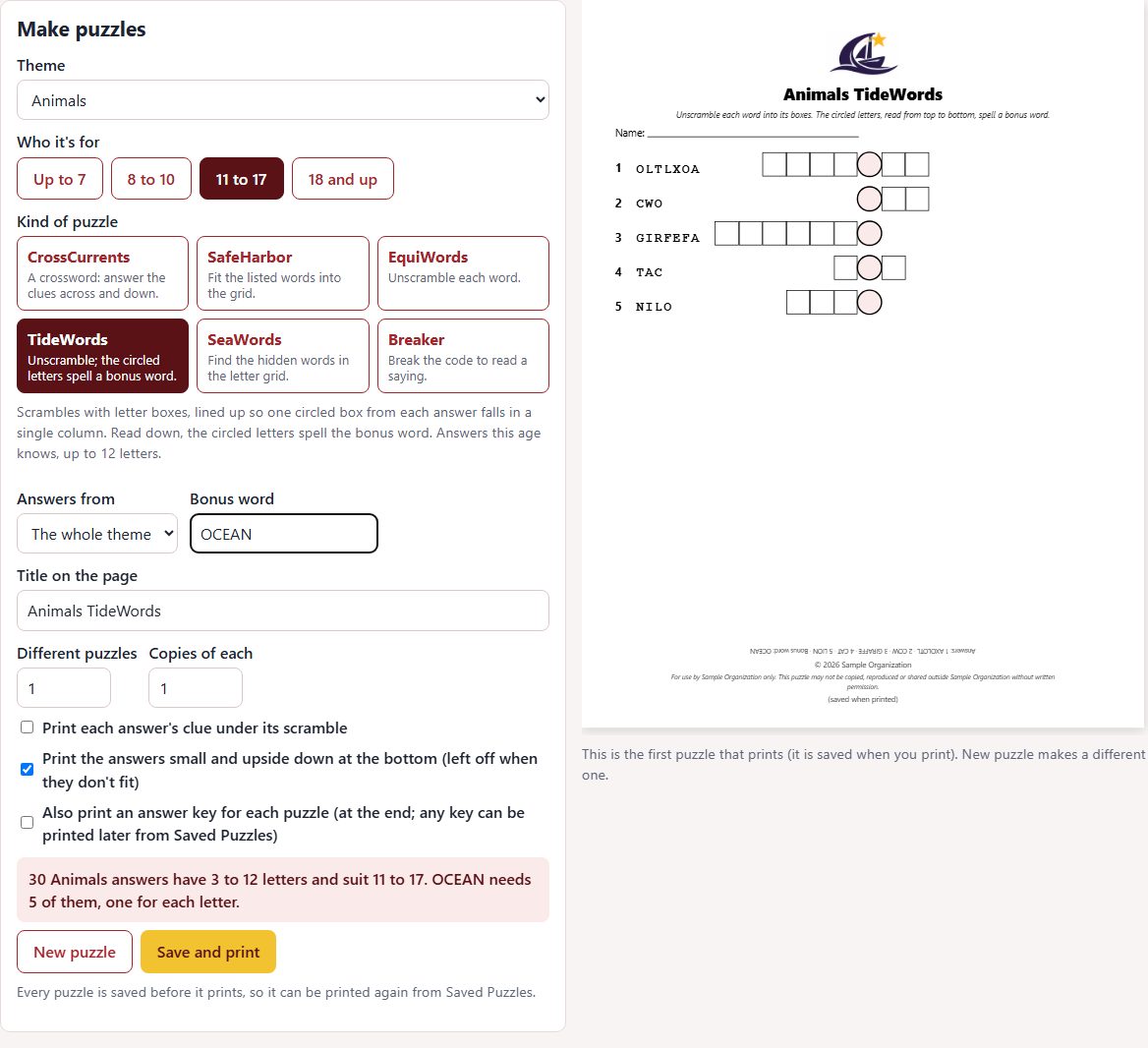
Type a Bonus word (for example OCEAN). One answer is picked for each of its letters, and the boxes are lined up so one circled box from each answer sits in a single column: read down, the circled letters spell the bonus word. Answers from can narrow the answers to one of the theme's tags. If no answer has a letter the bonus word needs, the box says which letter.
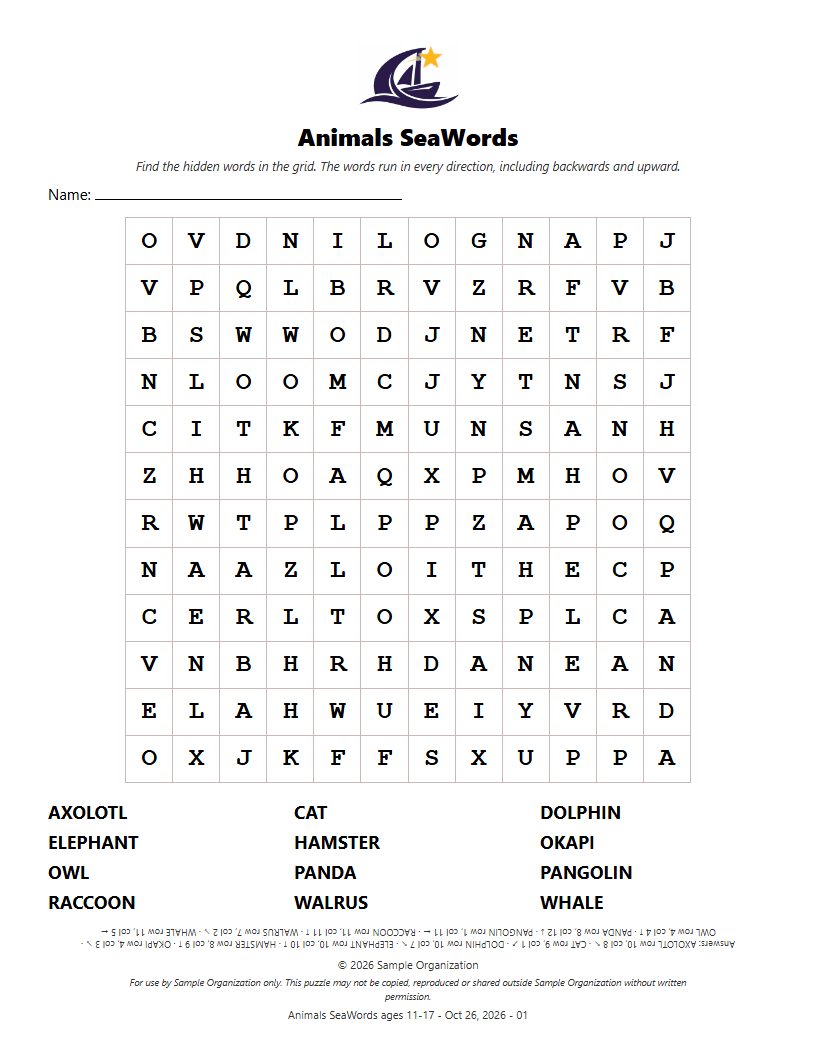
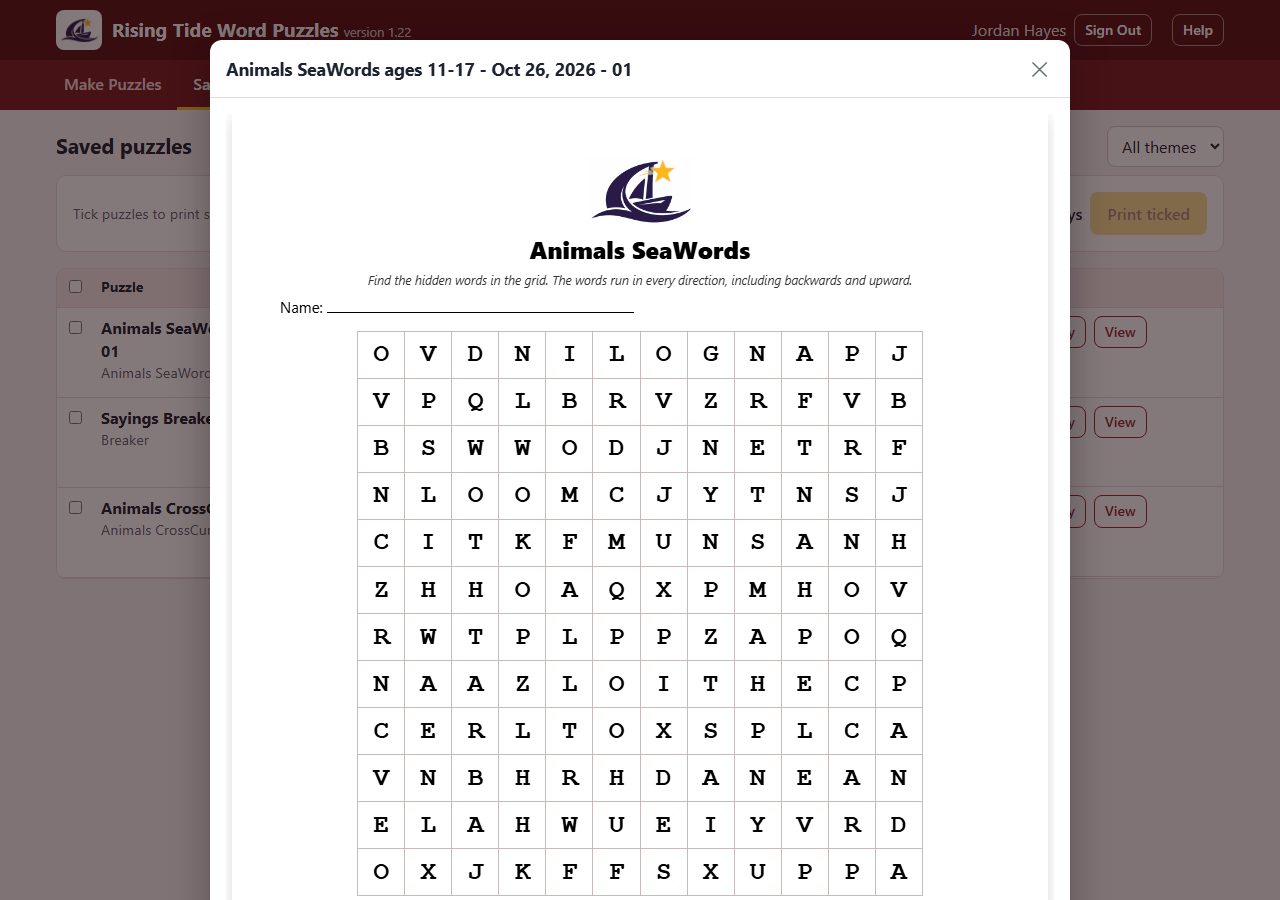
The answers are hidden in a grid of letters and listed underneath. Choose the Grid size (6 × 6 to 16 × 16) and how many answers. Up to 7, the words run only left to right and top to bottom; 8 to 10 adds the diagonal down to the right; 11 and up runs every direction, backwards too. For kids, the grid grows to fit a longer word.
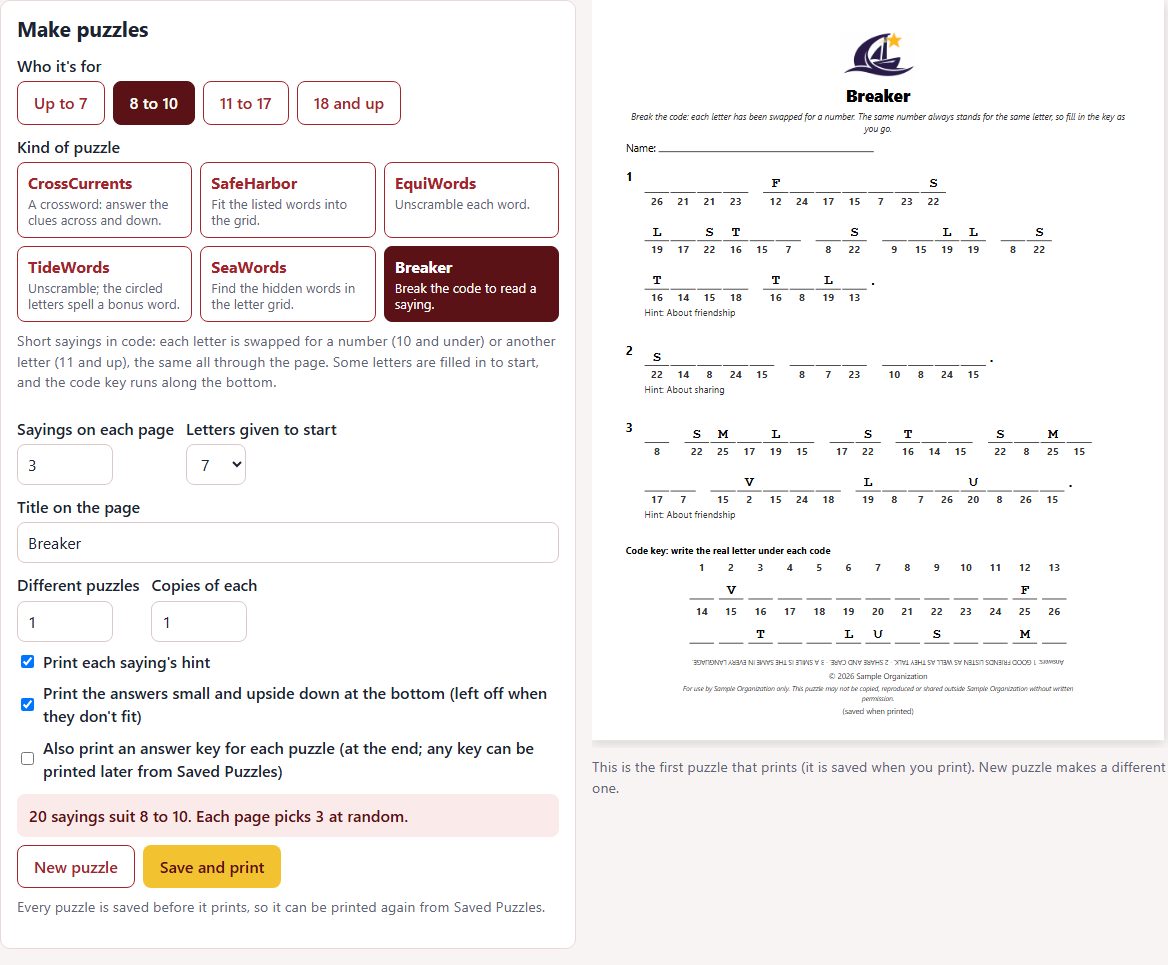
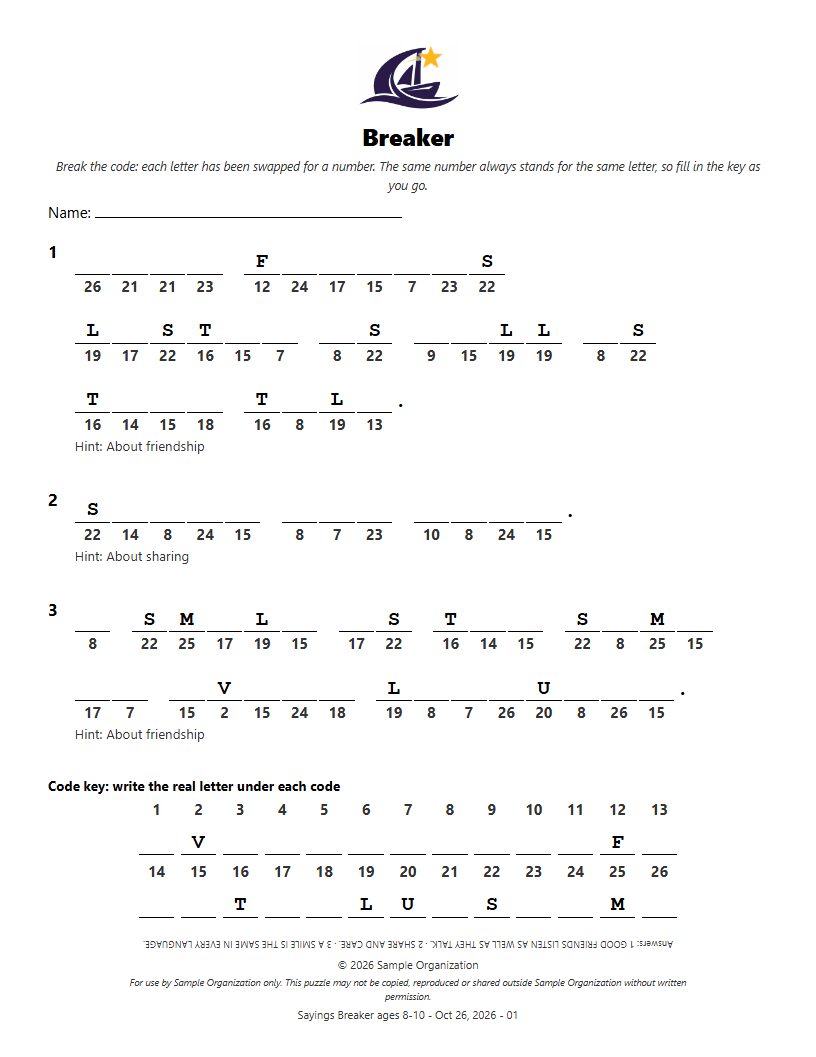
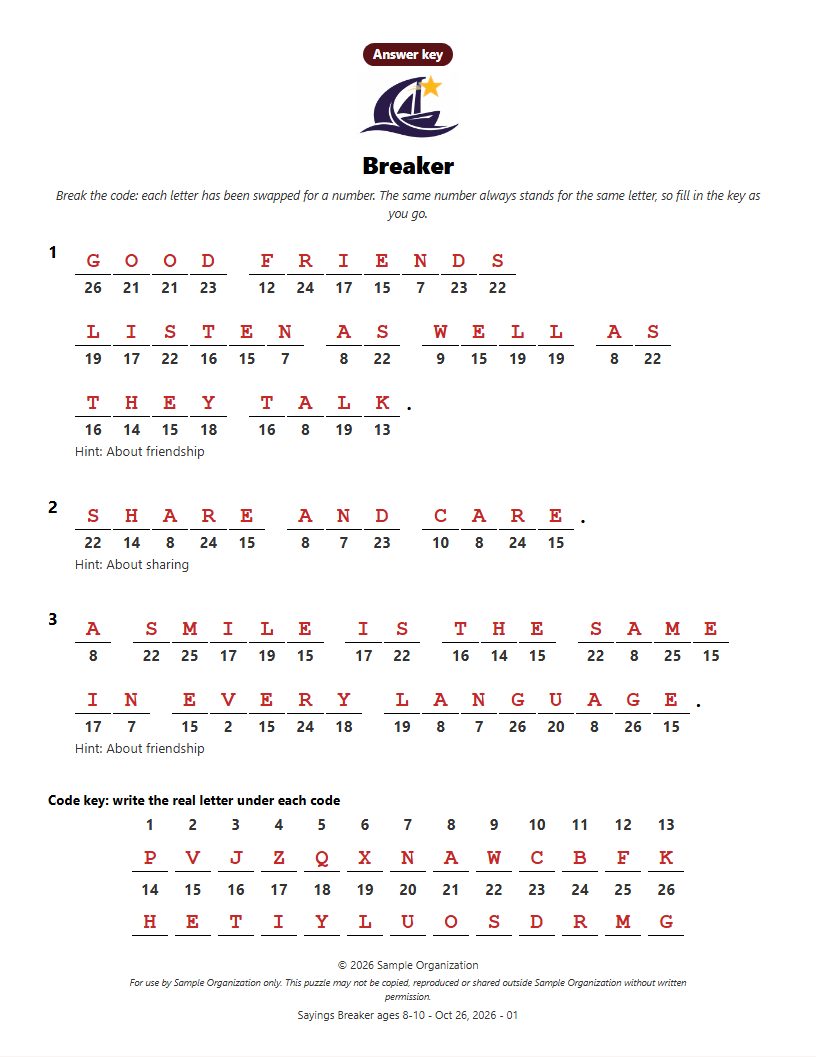
Breaker is made from sayings about including everyone, not from a theme, so the Theme box disappears. Each letter is swapped for a number (10 and under) or another letter (11 and up), the same all through the page. Choose Sayings on each page (1 to 4) and Letters given to start (0 to 14; it starts at 10, 7, 4 or 2 by age group). Tick Print each saying's hint to print a hint line such as About kindness. The sayings are kept under Sayings for Breaker.
Each letter has a box over its code. The letters given to start are already filled in everywhere they appear, and the code key along the bottom has a box for each code's real letter. Who said a saying, when known, prints under it.
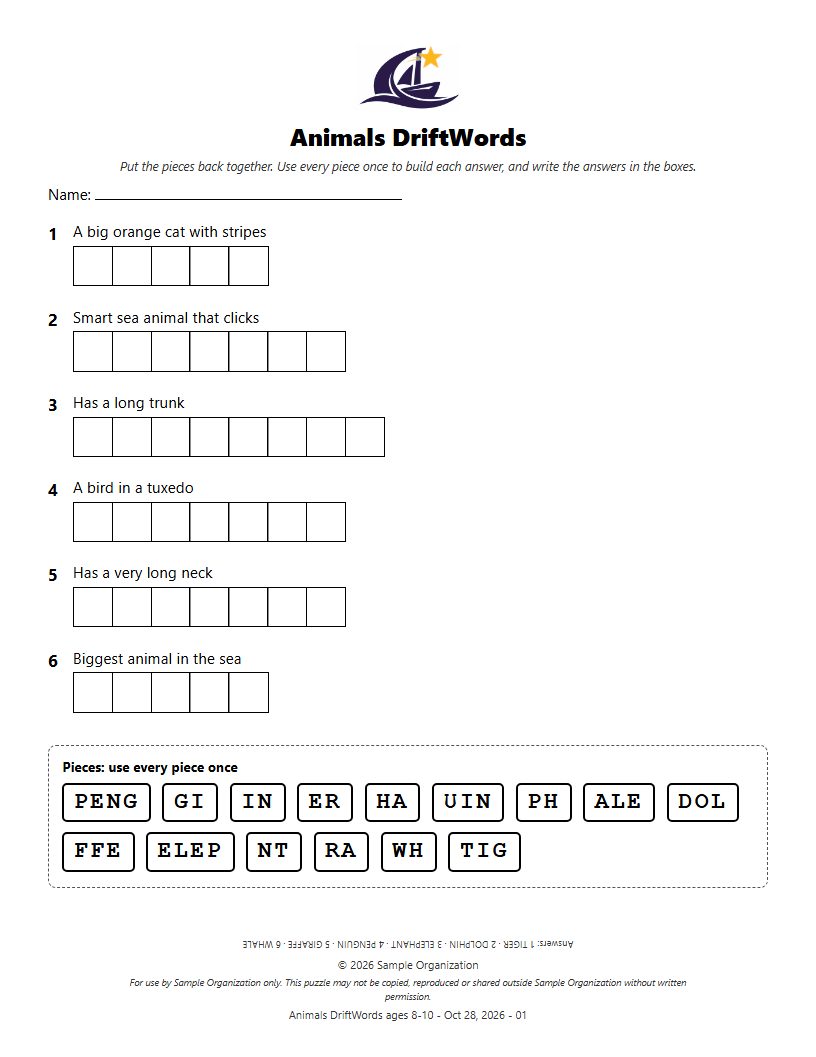
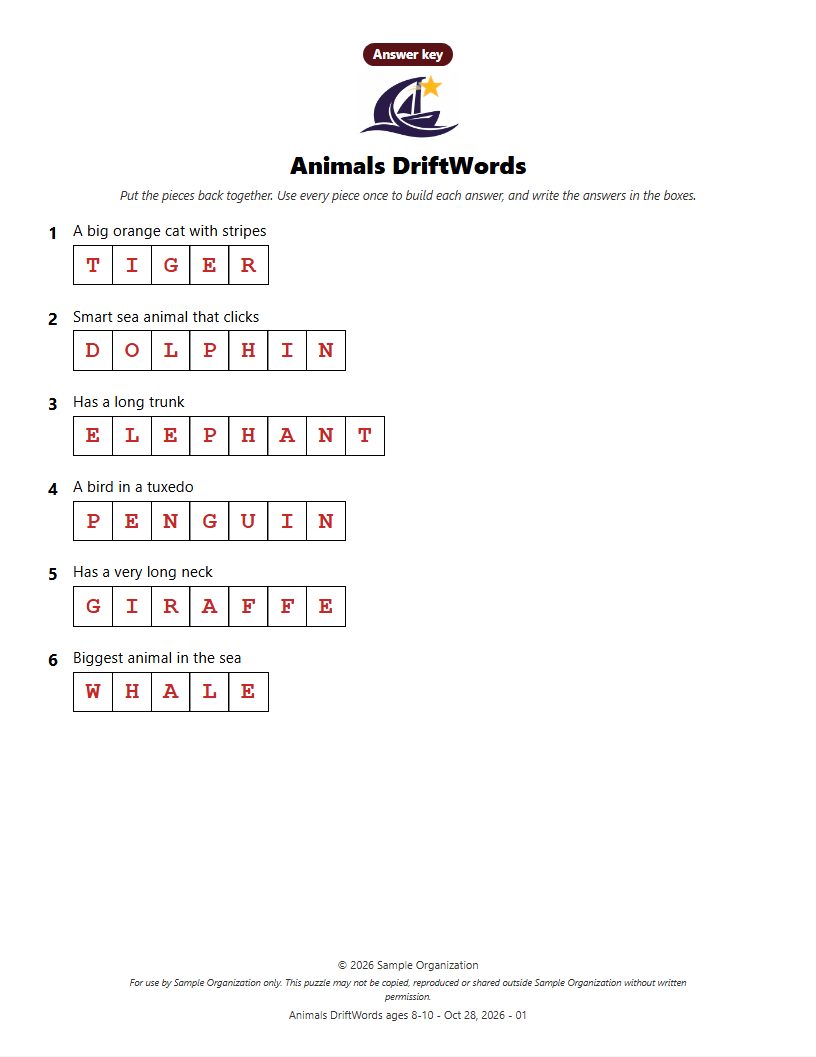
Each answer is cut into pieces of 2 to 4 letters, and all the pieces from the page are mixed up in one block under the empty answers. The solver uses every piece once to build each answer and writes it in the boxes. Choose Answers in each puzzle (4 to 8; it starts at 6 or 7 by age group). Each answer has its clue over a row of boxes, one box for each letter, with spaces and punctuation shown where they go. A piece never crosses a space in a name, and a 4-letter word is always two pieces. 2-letter pieces always outnumber 4-letter ones. Only answers with a clue for the age group can go in. The age group sets how long the answers are (up to 7: 4 to 8 letters, 8 to 10: 5 to 10, 11 to 17: 6 to 12, 18 and up: 6 to 14), so younger groups get shorter, better-known answers, bigger boxes to write in and a few more 4-letter pieces. The youngest groups may have only a few answers with a kids' clue; the box under the form says how many suit your choices.
The empty answers are at the top, each with its clue, and the block of mixed-up pieces is at the bottom, every piece in its own box so neighbors can't run together.
Visitors don't need this app: play.html on the same address (for example the Games link on the organization's website) lets anyone play on screen with no sign-in. They choose a theme, an age group and a kind (DriftWords or Breaker) and get a fresh puzzle; New puzzle makes another as often as they like, and nothing is saved on the server. In DriftWords they tap an answer, then tap the pieces that build it (tap a filled box to take a piece back out); in Breaker they tap a box and type a letter, and every box with that code fills in; Breaker shows one saying at a time, so a long quote has the whole screen; the Free Letter button shows one random consonant from the puzzle (every box with its code fills in and stays), up to 5 in a puzzle; starting over doesn't give them back. Check marks what is wrong, Reveal answers fills everything in, and Print prints the puzzle with the answers small and upside down at the bottom. DriftWords shows 5 answers on a sheet, and the Free Tile button puts one correct tile in place (up to 5 in a puzzle; starting over doesn't give them back). DriftWords has an Expert switch for 18 and up that mixes in pieces from one or two extra words that belong to no answer. Visitors see every theme; an age group without enough answers is greyed out. This is separate from The Make Puzzles screen: nothing a visitor does is saved in Saved Puzzles.
Title on the page starts as the theme and kind (for example Animals CrossCurrents); type your own if you like. For 18 and up, Letters, from and to limit how long the answers are (not for CrossCurrents). Different puzzles (up to 50) makes that many different puzzles with the same settings, and Copies of each (up to 200) prints each one that many times.
New puzzle makes a different first puzzle in the preview. Save and print saves every puzzle first, so it can be printed again later, then opens your browser's print box. Print on letter paper at 100% scale. The saved name is the theme, kind, age group and date with a number, for example Animals SeaWords ages 11-17 - Oct 26, 2026 - 01.
Every puzzle is saved before it prints, so it can be printed again.
The Saved Puzzles list
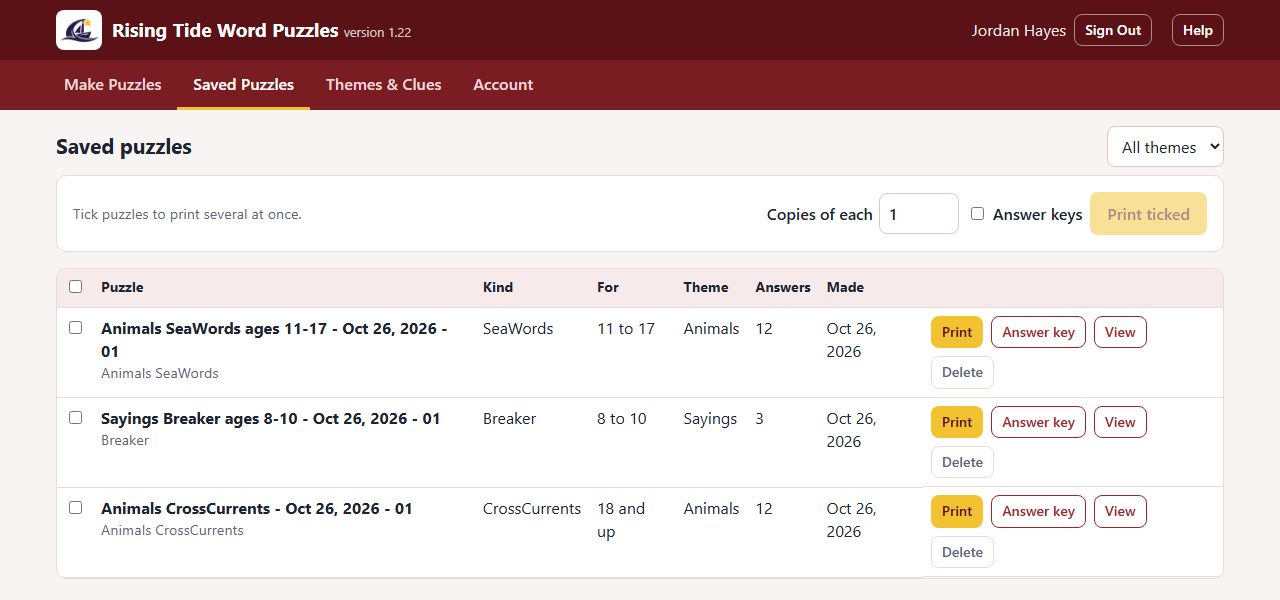
Saved Puzzles lists every saved puzzle, newest first, with its kind, age group, theme, number of answers and date. The box at the top right shows one theme at a time. A saved puzzle stays exactly as it was made, even if its answers or clues are changed later.
On a row, Print prints that puzzle and Answer key prints its key. To print several at once, tick them (the box in the heading ticks every row shown), set Copies of each, tick Answer keys if you want them, and tap Print ticked.
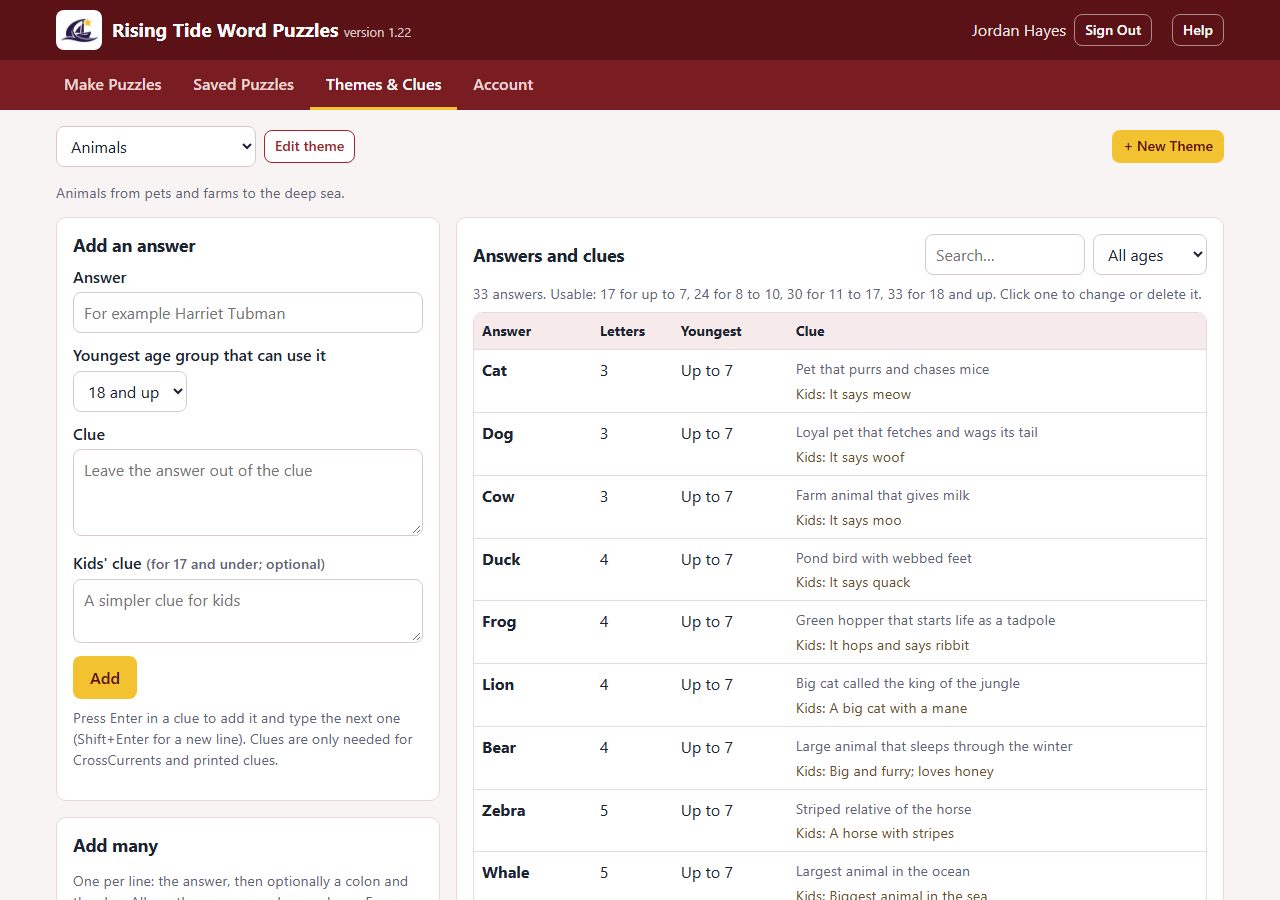
Themes & Clues holds the words the puzzles are made from. Pick a theme at the top; its answers are listed on the right with their letter count, youngest age group, clue and kids' clue. Search the list, or show only the answers an age group can use. The line above the list counts how many answers each age group can use.
Under Add an answer, type the answer, choose the Youngest age group that can use it (the youngest age that would know it, not how long it is), and add a clue and a simpler kids' clue if you like. Leave the answer itself out of the clue. Press Enter in a clue box to add it and start the next one. Answers are 3 to 16 letters. Clues are only needed for CrossCurrents and for printed clues; kids 10 and under need a kids' clue for CrossCurrents.
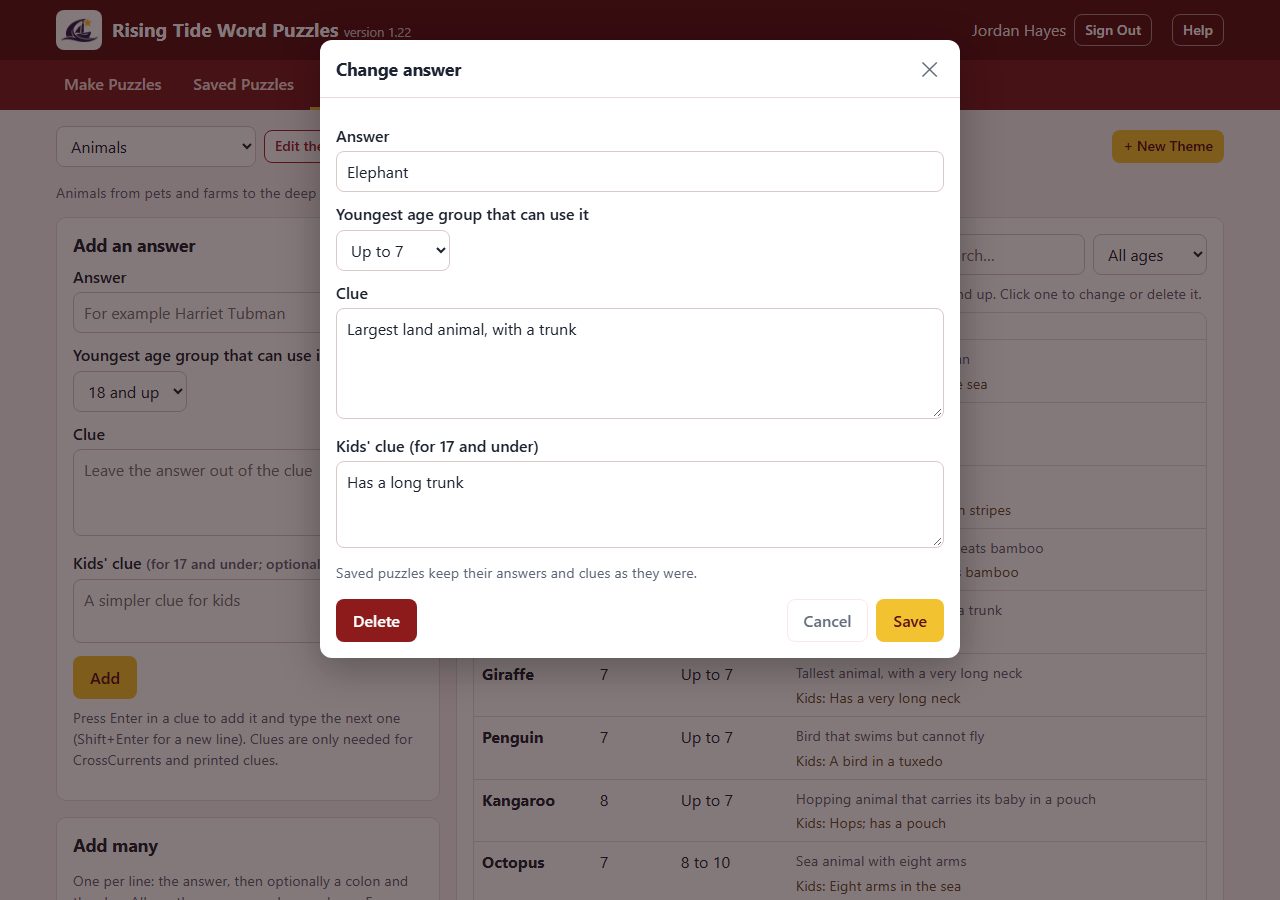
Under Add many, type one answer per line, optionally followed by a colon and its clue (Elephant: Largest land animal). They all get the age group chosen above. Export CSV saves the theme's answers to a spreadsheet file and Import CSV adds answers from one, using the columns answer, clue, kid_clue, age_group (1 = up to 7, 2 = 8 to 10, 3 = 11 to 17, 4 = 18 and up). Answers already in the theme are skipped.
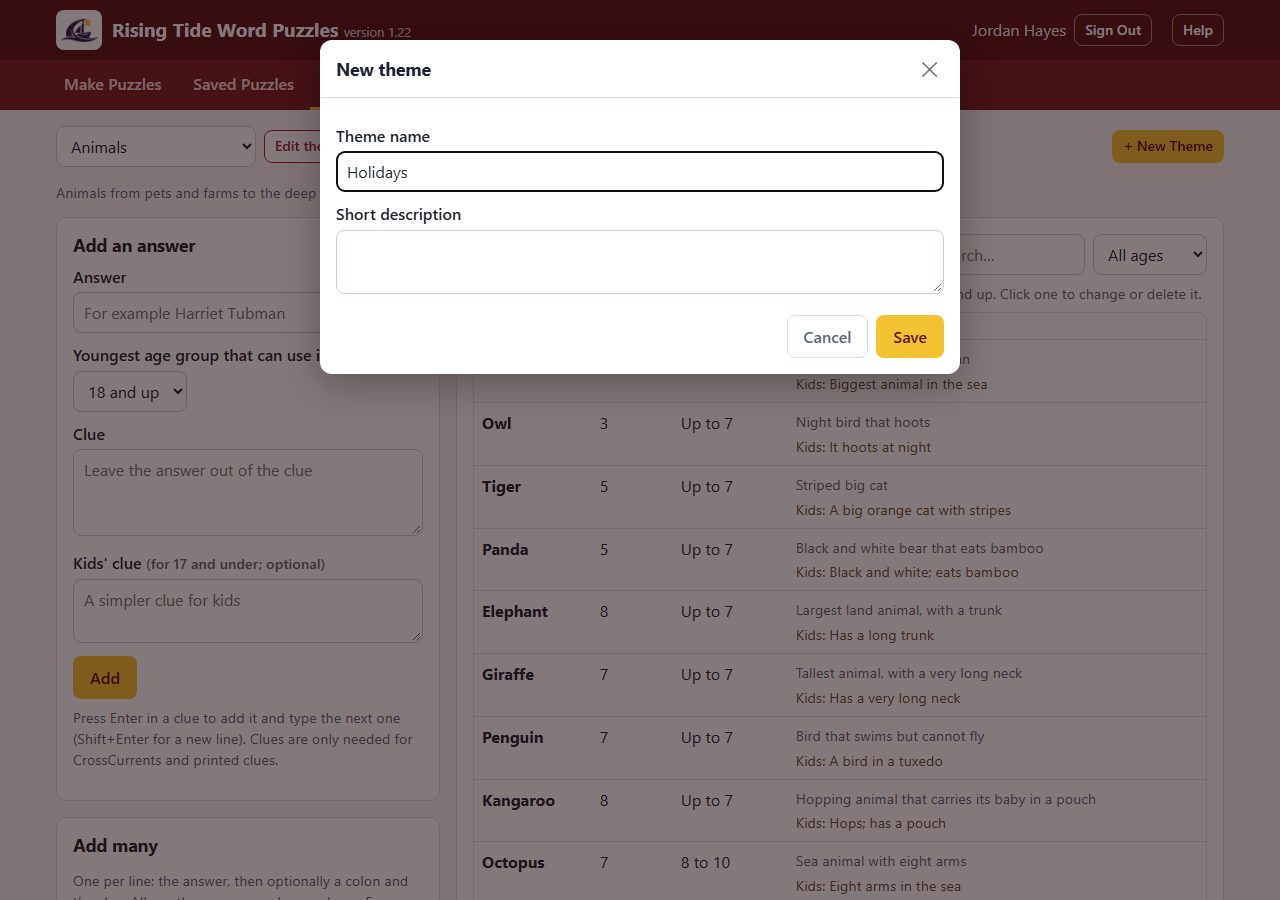
Tap + New Theme, give it a name and a short description, and tap Save; then add its answers. Edit theme renames it or deletes it. Deleting a theme deletes its answers too, so you type the theme's name to confirm; saved puzzles stay and can still be printed.
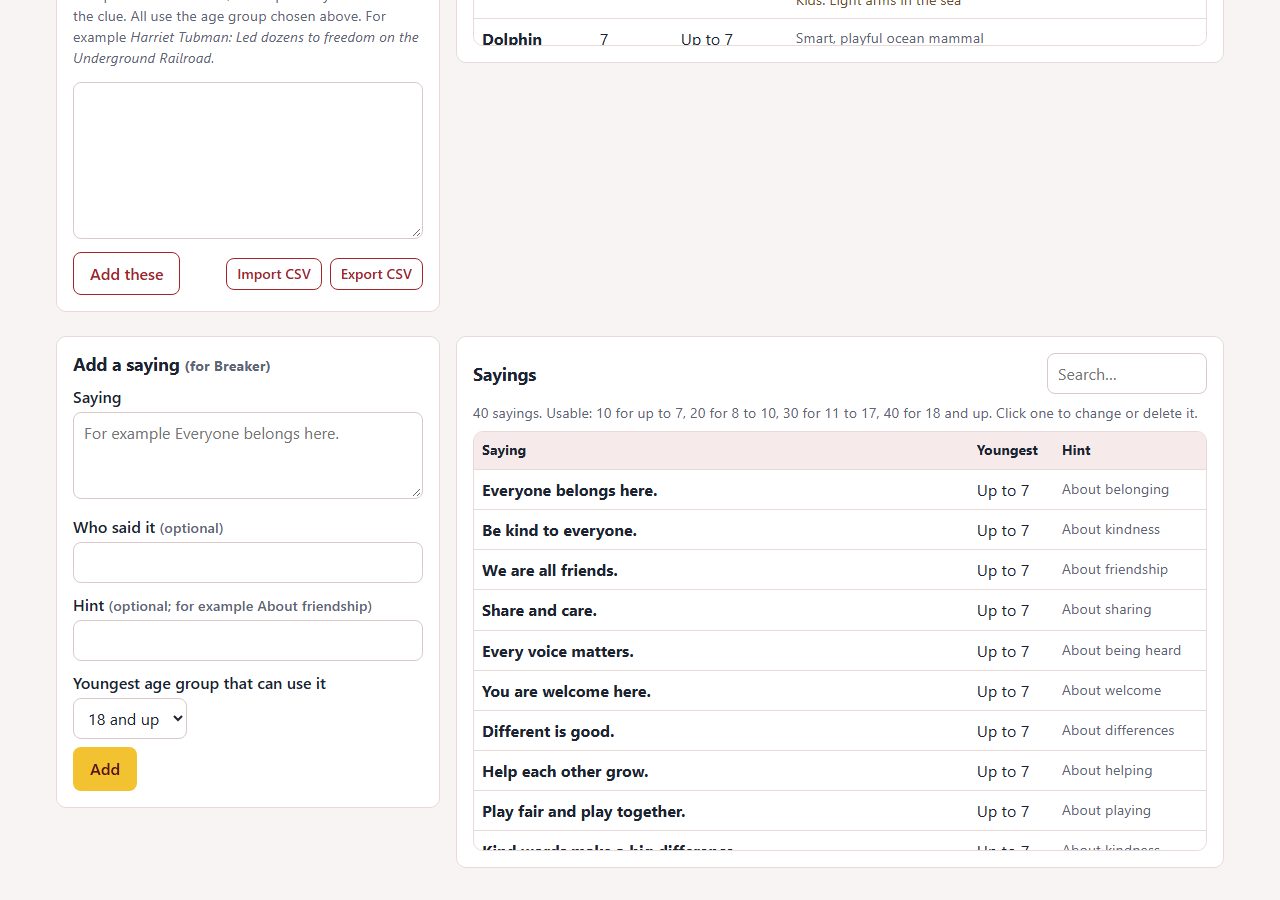
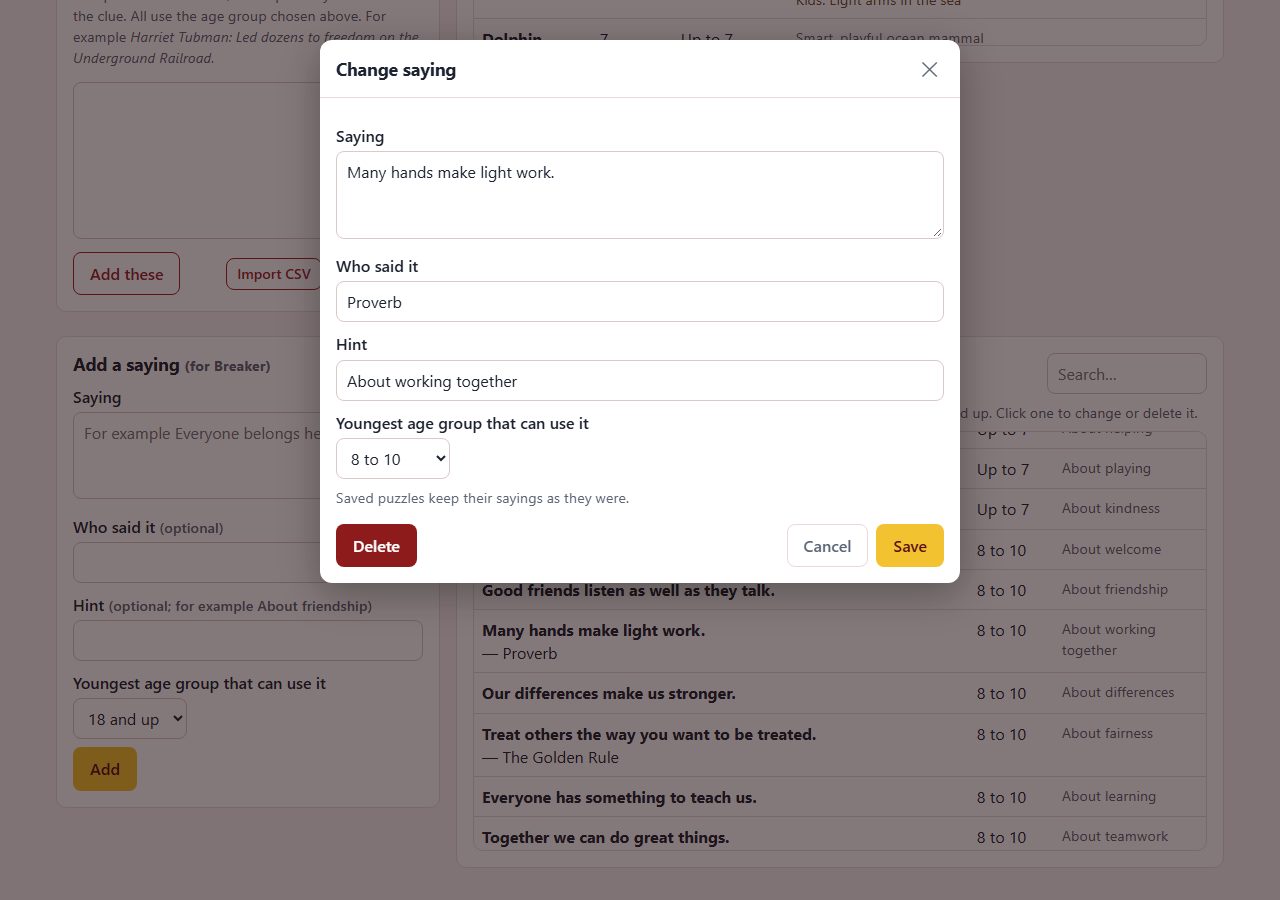
The sayings for Breaker: break the code are kept at the bottom of Themes & Clues, apart from the themes. To add one, type the saying, who said it (if known), a short hint, and the youngest age group it suits, then tap Add. Keep sayings short and plain for the youngest groups. A saying is at most 300 characters so it fits the page (a printed page with several long sayings shrinks its boxes to fit; the online page shows one saying at a time). On a site where sayings are sent from Tools (Rising Tide), this list is read-only: there is no Add form and a saying can't be changed or deleted there. Double quote marks (straight, curly and angle) are taken out of a saying as it is entered; apostrophes stay. A count under the box (123 / 300) turns red when it is too long. To quote someone, end the saying with a hyphen and the name (Be the change you wish to see. - Mahatma Gandhi): the name moves into Who said it and prints under the saying, not in the code.